With this new update many players and new community members might be confused or are trying to adjust to the new look. I will try my best to guide you; however, I’m sure that I haven’t seen all of the changes yet so please bear with me.
Disclaimer: Some things might change and they could look slightly different depending on whether you use mobile or desktop.
So let’s begin! This is the link
https://community.king.com/
to access the community. Make sure to log in and/or sign up for an account if you have never been here before.
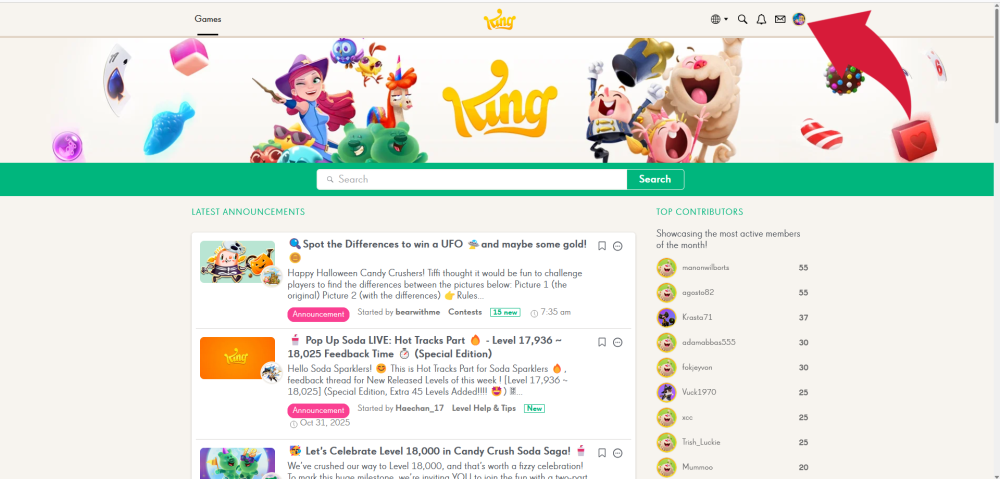
At the top of this webpage you will see the ‘Latest Announcements’, followed by ' Popular Discussions’.
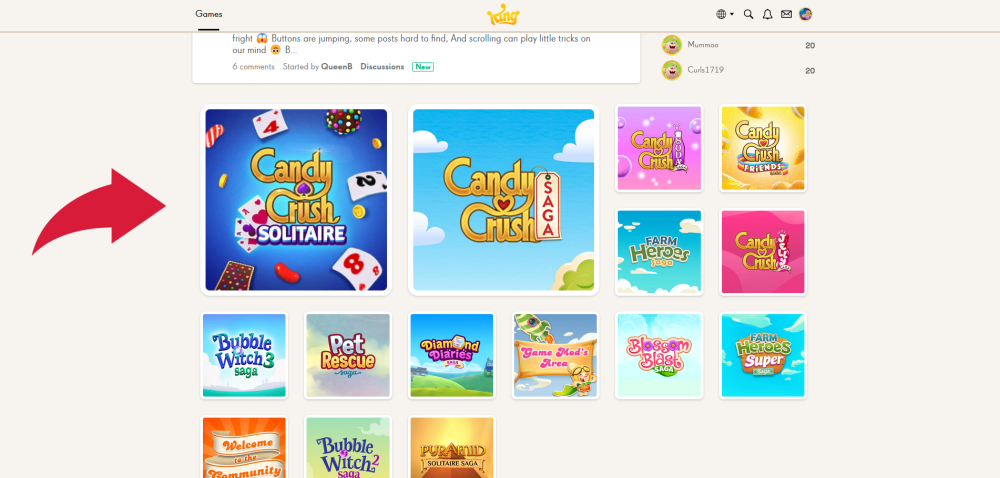
Scroll further down towards the bottom and you will see all the King games posted as images. If you click on any of them it will take you to that game community.
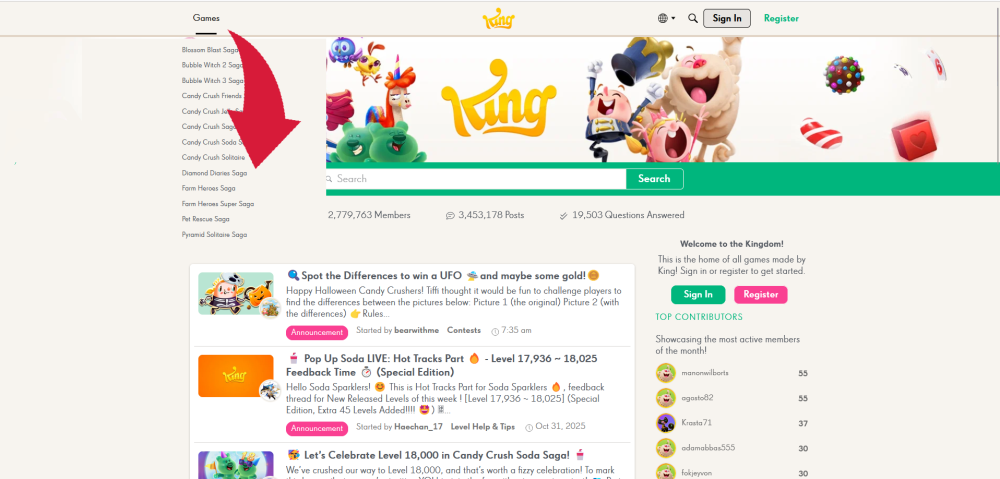
You can also find your game by clicking on the 'Game' link back at the top of this webpage.A drop-down menu will open and you can choose your game from there too.
Scroll down to the bottom and you will see a 'Visit Help Center' button.
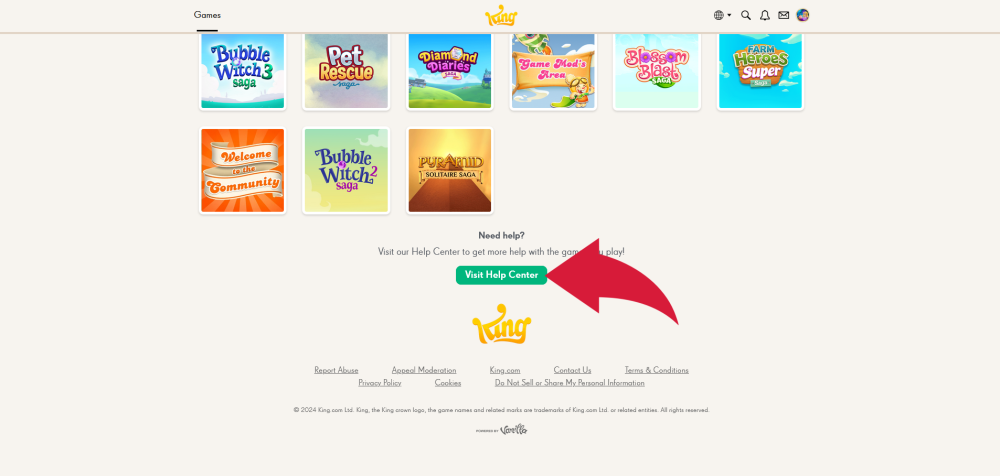
Click on it and it will take you to the Help Center webpage.
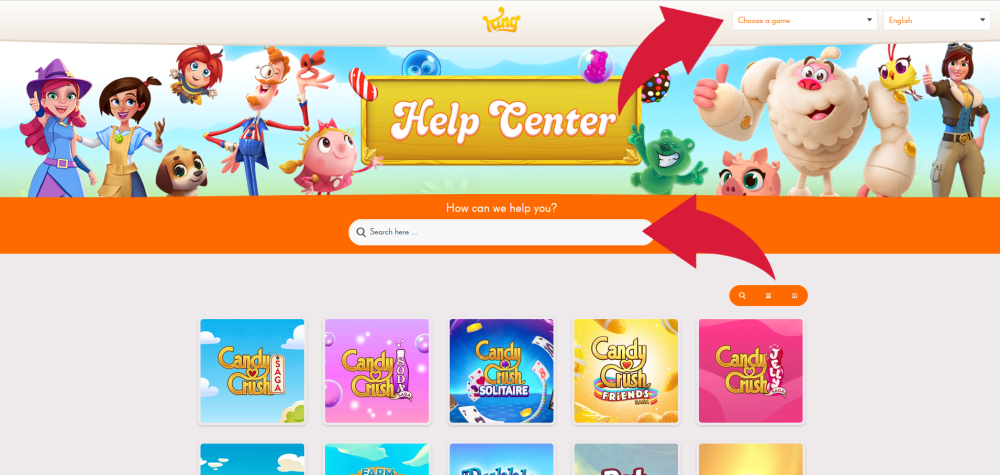
The Help Center offers you a search box to type in your game question and then you will get search results.
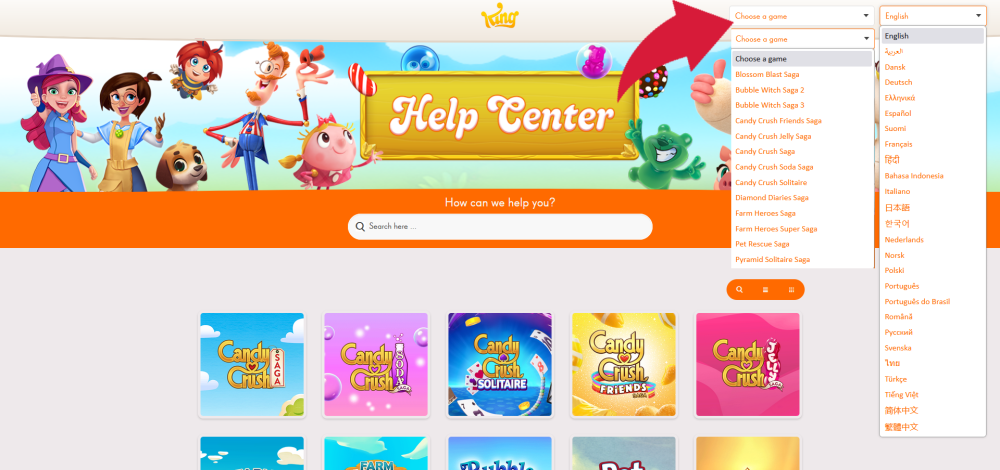
Above the search box and to the right, you also have the option of choosing your game and native language from a drop-down menu.
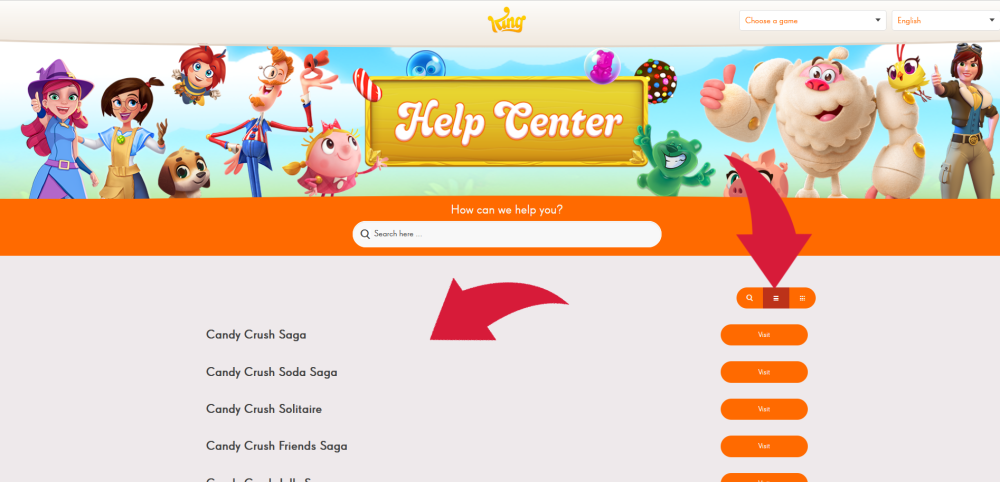
Below that to the right is a button that offers you another way to access the game list. The middle link will offer you a list of the games by text and you can choose your game from there. The last link will give you the game images.
Scroll down this page to view ‘Promoted Articles’ and ‘Topics’.
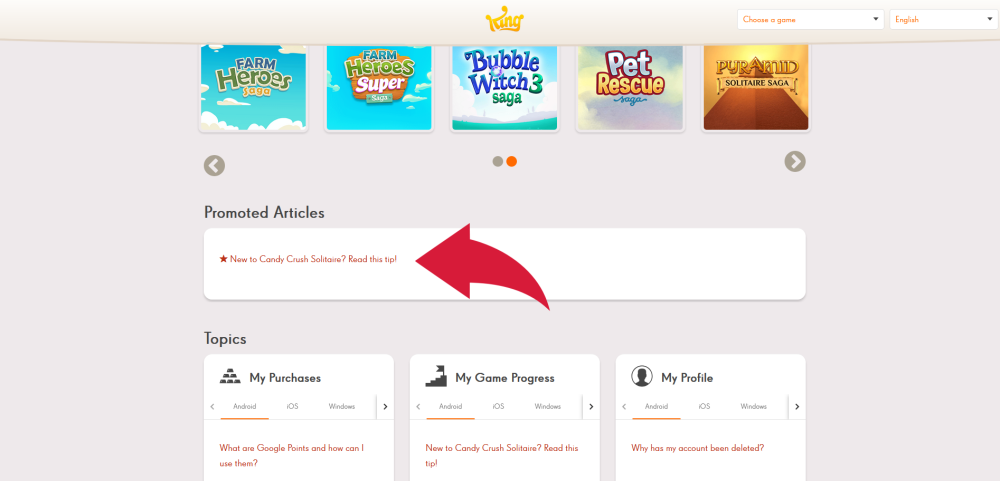
Under ‘Promoted Articles’ there is a starred hyperlink article ‘New to Candy Crush Solitaire? Read this tip!’. Click on this link.
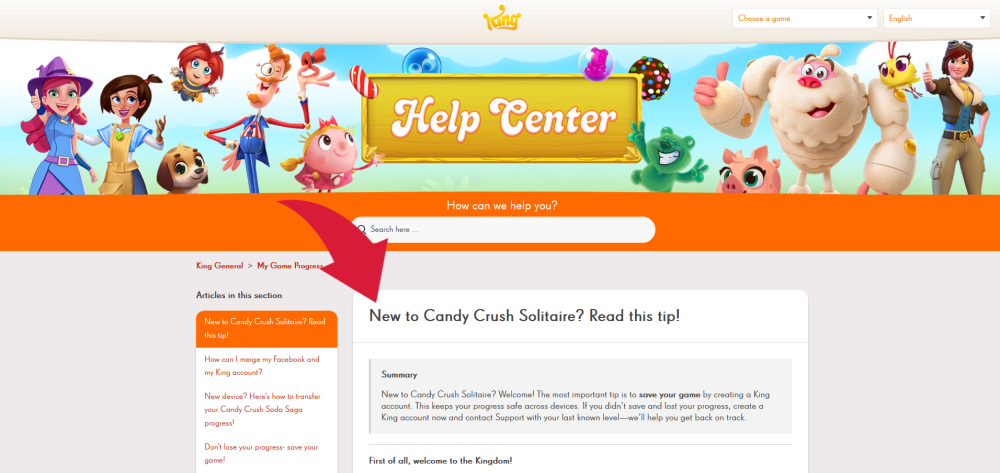
A new webpage will open up to give you information about the game. Go back to the previous page by clicking on the arrow point to the left. Scroll down a bit to see the Topics.
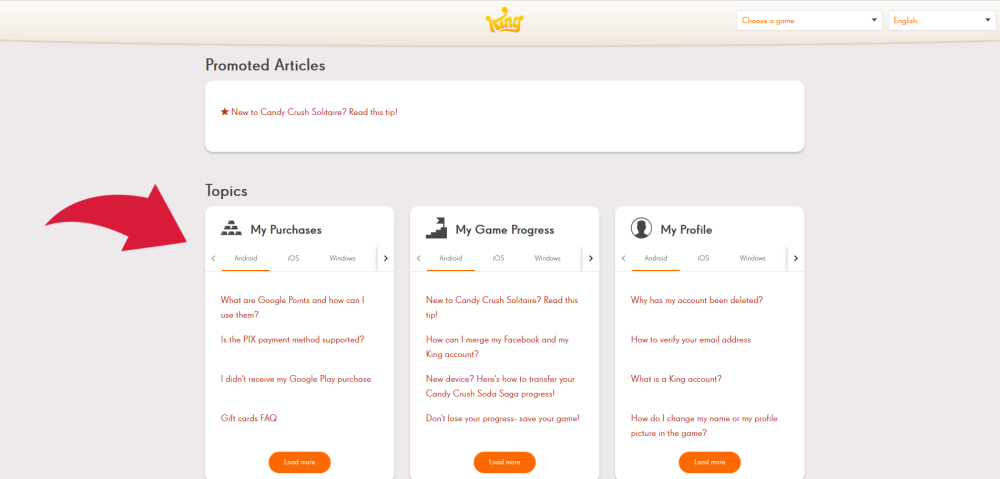
In the ‘Topics’ section there are common questions and answers to various topics, such as: : My Purchases, My Game Progress, My Profile.
Scroll a bit more and you will see more topics.
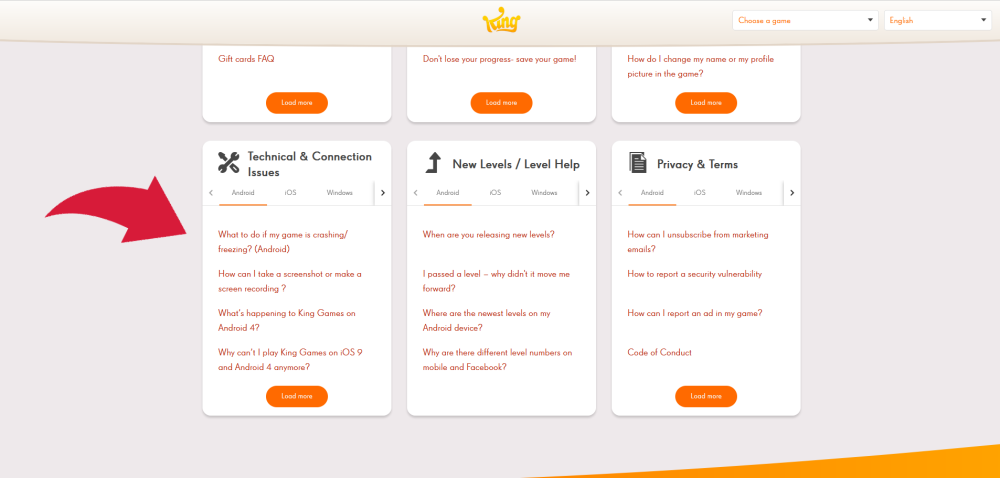
Now let’s click on one of the topic questions to see if that helps answer your game issue.
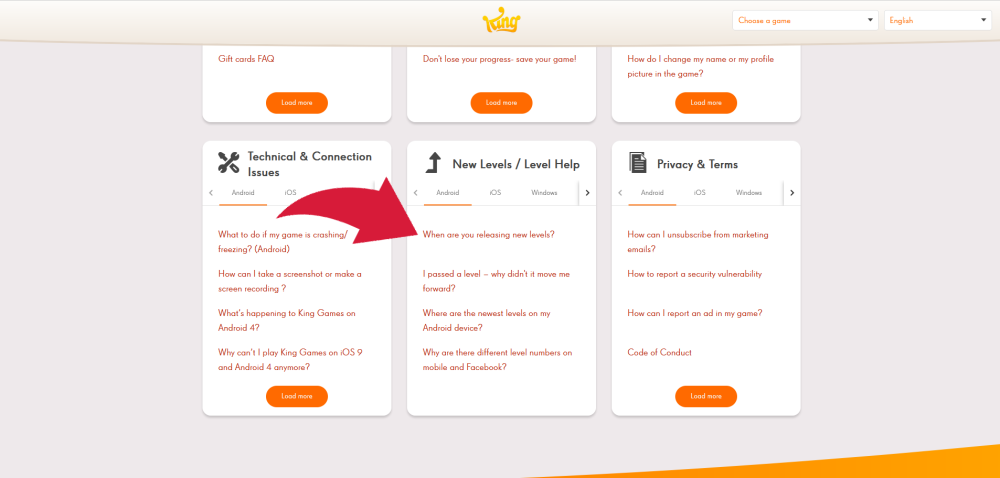
I used one of the level questions as an example, 'When are you releasing new levels? I have created a GIF to view the options (device or desktop).
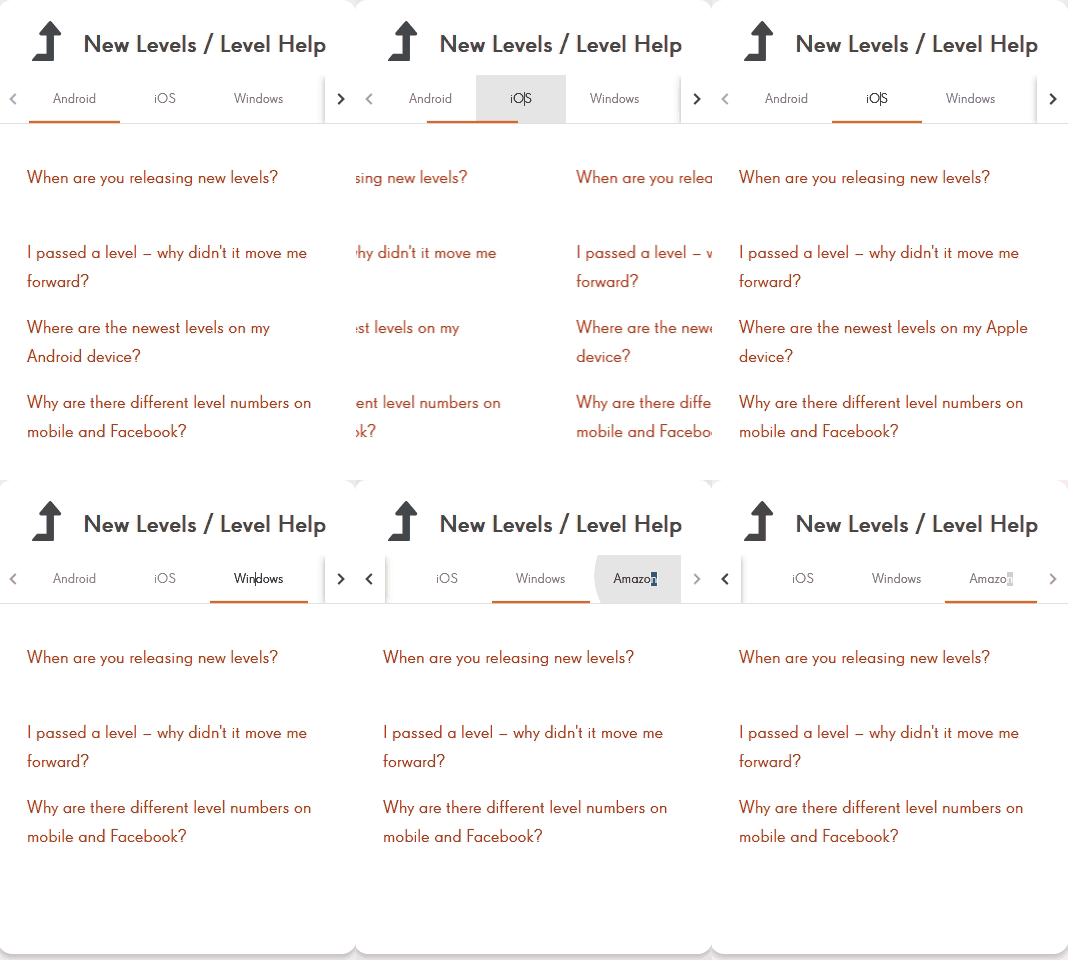
You have the option of choosing how to see the response – mobile (Android, IOS, Windows or Amazon).
Here is my example: I clicked on ‘Windows’ since I use my desktop. I clicked on the first question ‘When are you releasing new levels?’
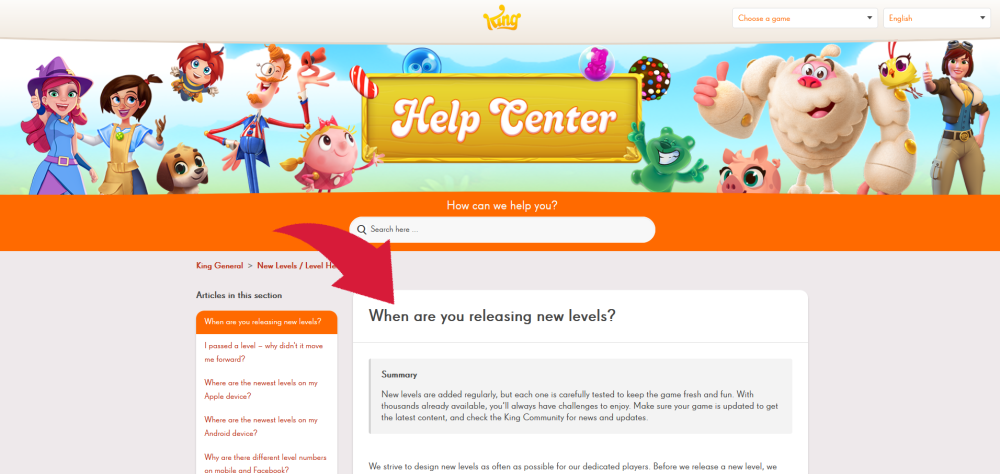
It opened up a new webpage with the answer.
Now let’s begin to check out the game communities. Each game has its own home page. I will use Candy Crush Saga as an example.
I am not good at clicking here and there so I had to go back to the beginning first page,
https://community.king.com/
, to get to the game images. Feel free to find it on your own.
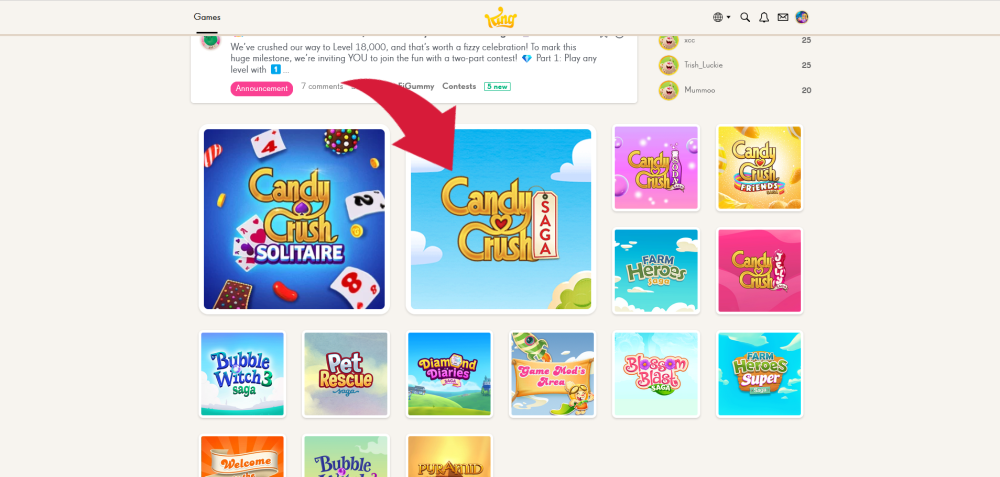
Scroll down to the game images and click on the Saga.

Each game has its own home page. Only the larger games have 4 buttons (Saga, Soda, Friends, Jelly, Farm Heroes, BW3 and Pet Rescue).
Below are the other King games with the buttons in their area:
Candy Crush Solitaire – Discussions, Support and Contests
BW2 – Discussions, Support and Contests
The smaller games (Blossom Blast, Diamond Diaries, and Farm Heroes Super) - Discussion & Support
Now let’s begin to check out each area in the Saga the game communities.
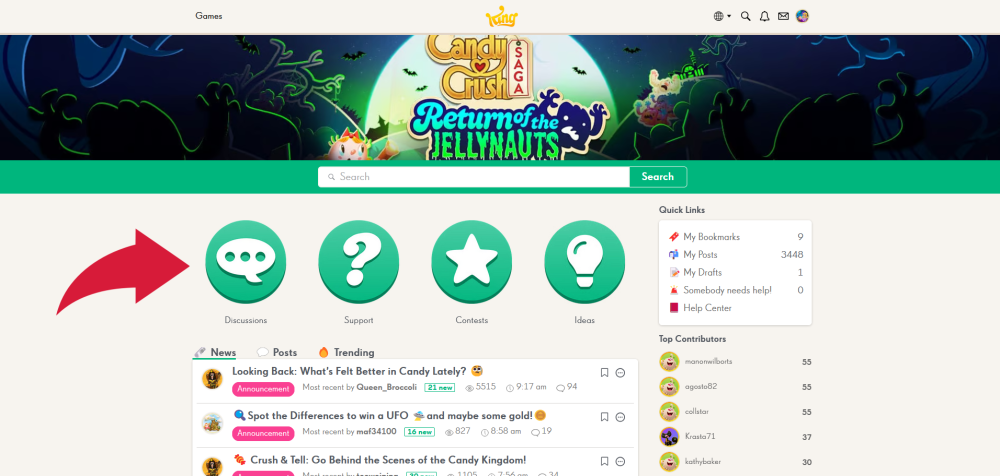
Click on the first button (speech box button) for the Discussion area.
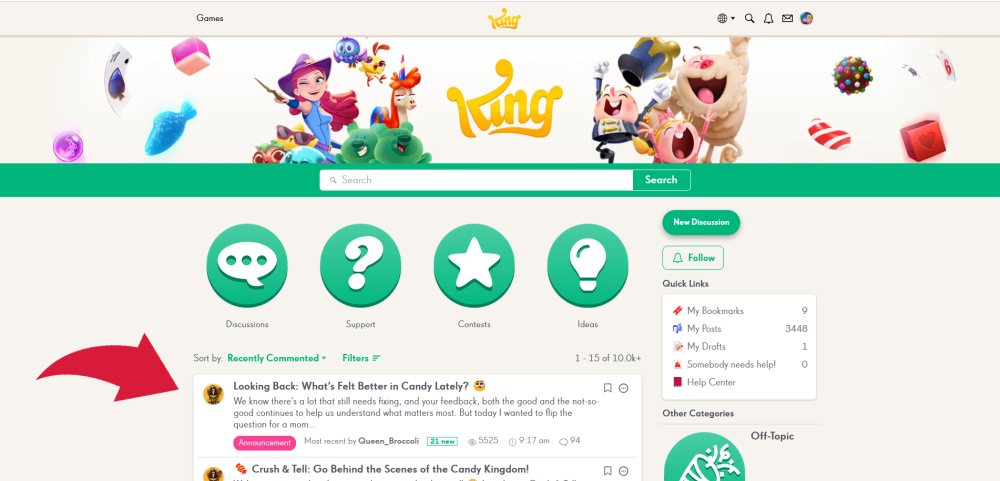
Discussion: This area offers you new features, events, and upcoming changes in the game, as well as general discussion messages. Scroll down the page to get an idea of the posts in this area. Anything that has an Announcement button was posted by a community manager. Click on any message to view its content.
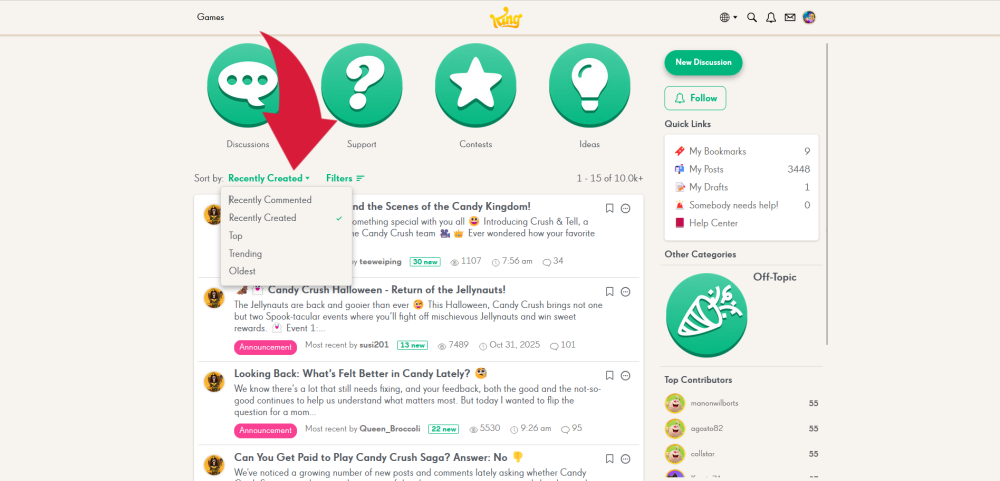
You also have the option to sort to view older posts. Click on the ‘sort by’ and a drop-down will show you the options. The default is Recently Created; however, you can choose Recently Commented, Top, Trending and Oldest. Click on each to get an idea on other posts.
Now let’s go to the Support area (question mark button).
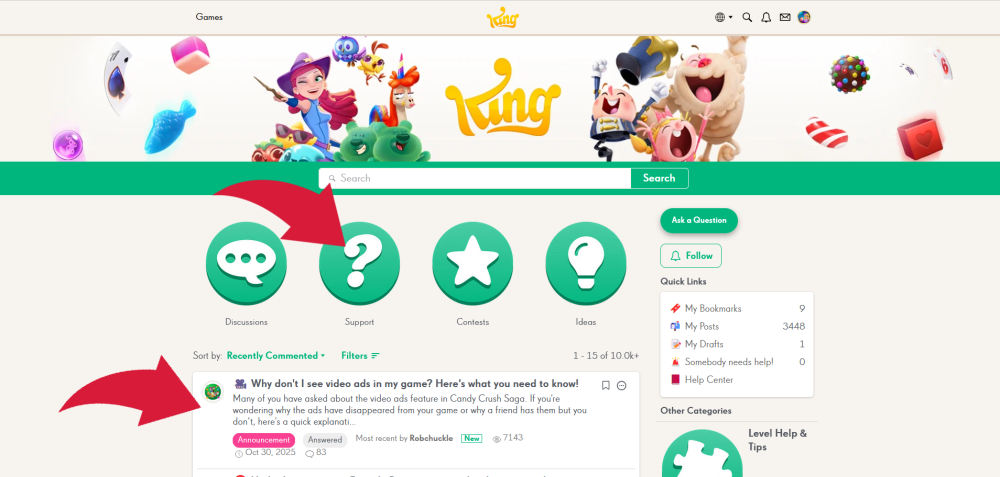
Support: This area is where you post your game issues or contribute to any current discussions. For example, if you are having difficulty with a level or you think that you might have found a glitch, you have a couple of options. The first option is to scroll down the list to see if someone has already reported the issue. Conversely, if you see a post of an issue that you had, you might want to post a response in that message.
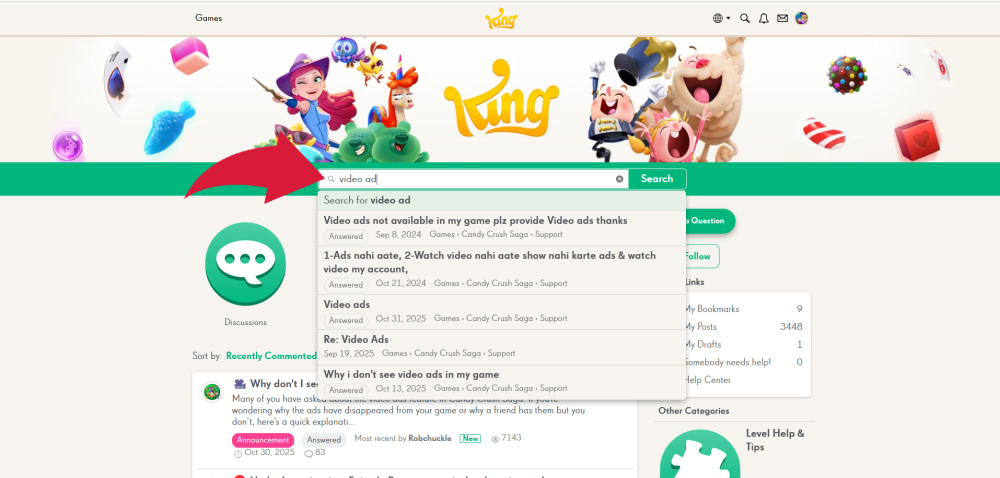
You can use the search box by typing in your issue. If there are posts regarding your issue a drop-down box will open with the posts referring to your glitch. Click on the more recent posts.
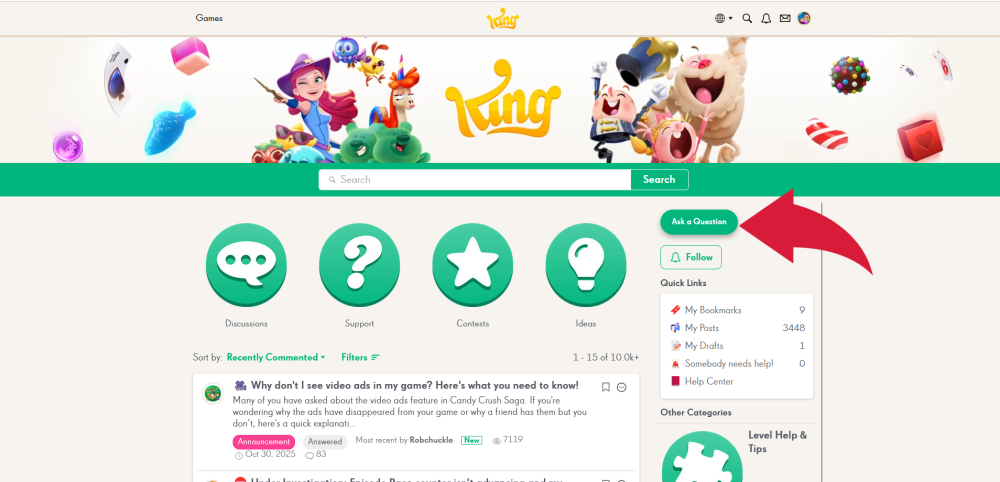
If your issue is neither of them, you now have the option of posting it by clicking on the ‘Ask a Question' button. Make sure that your title fully describes your issue. Then make sure that your content is detailed enough.
Now let’s go to the Contest area (star button).
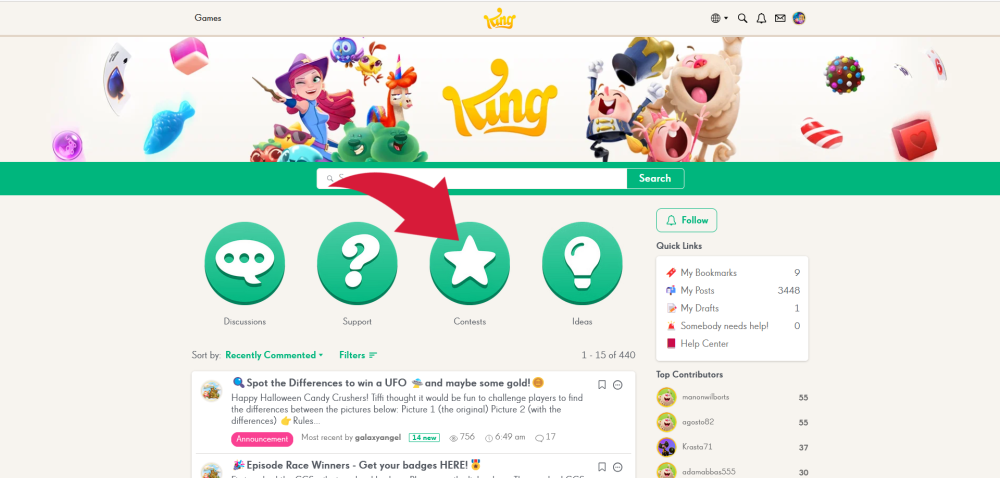
Contests: This area (star button) is a fun area as it offers a variety of contests for a chance to win some gold bars. It's also a chance to meet other community members who love the game as much as you. You can see the current contests because those posts have the Announcement button. If the contest is over, you will see “ENDED’ in the title.
This is your chance to get involved by entering the contest and meeting other community members who love the game as much as you. You can see the current contests because they have the Announcement button. If the contest is over, you will see “ENDED’ in the title.
Click on the button to the right (the light bulb button) the Ideas area.
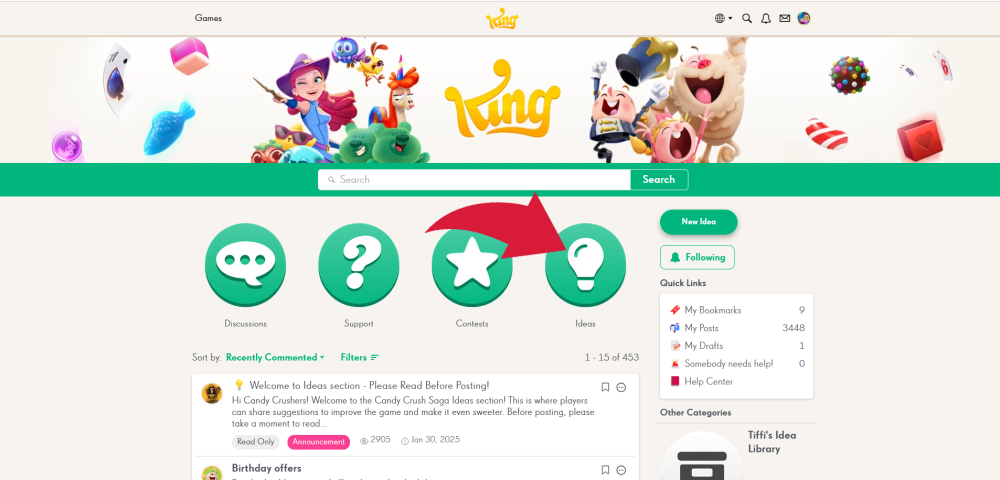
Ideas: This area is for suggestions to help improve the game and make it even sweeter. Only these larger games have an Ideas area (Saga, Soda, Friends, Jelly, Farm Heroes, BW3 and Pet Rescue) . Make sure that you read the community manager’s message first (Announcement button). It will give you the guidelines plus other tips before you create a new post.
Scroll down the webpage to see if it’s already been suggested. If it has, click on the link, comment, and vote.
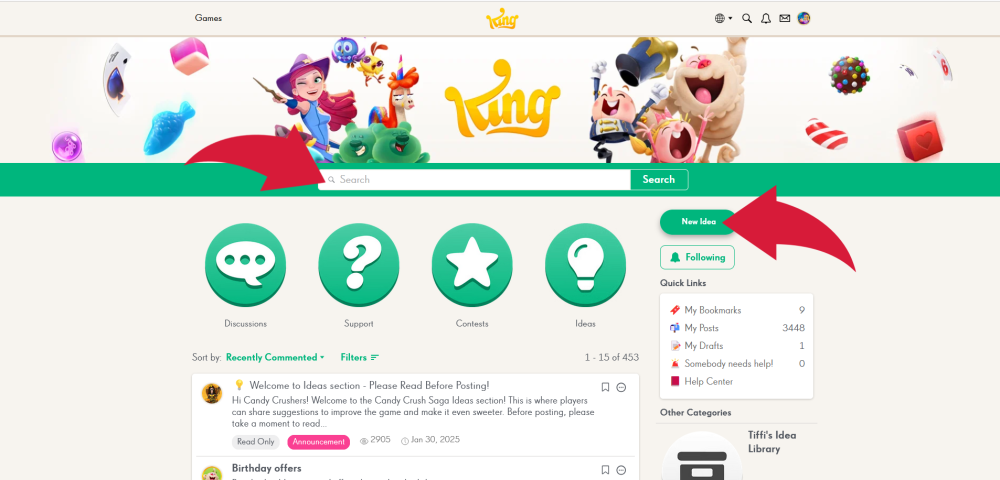
If your idea is not in any of the areas, then you can click on the ‘New Idea’ button on the top right. Make sure to give it a good title and detail it as much as you can so that everyone knows exactly what you would like to see added to the game.
To the right of the four buttons there is a small box.
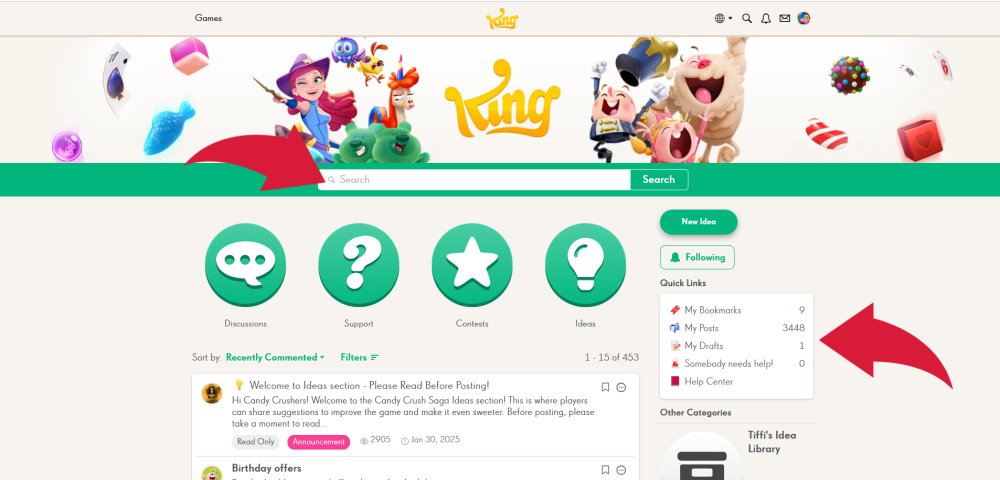
Bookmarks: if you have bookmarked any of the posts it will show you a number with how many you have.
My Posts: this is cool. When you click on it you will get a list of all the posts that you created for that specific game community. I checked other game areas and got the posts that I had created in those game areas.
My Drafts: You can save any of your posts in the community as a Draft or Post. If you save it as a Draft it will show up here. All that you have to do is click on it and it will up to your draft(s). Click on the subject line and it will open for you to make changes or to Post.
Somebody needs help!: You might see a number here. It means that a community member posted a message that hasn’t received a reply. The community has game experts that handle those posts.
Help Center: if you click on the link it will take you back to the home page of the Help Center.
One final detail that I want to bring to your attention. Scroll down to the bottom of the page.
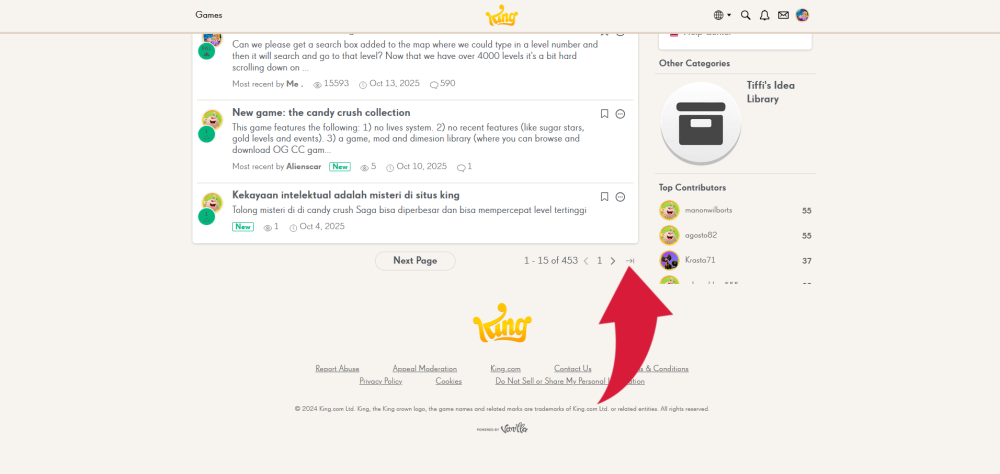
You have the option of clicking on the ‘Next Page’ button. In addition to the right you can see how many pages are available. You can type in the page number that you want to access by clicking on the arrow to the right of the page number and then type in the page that you want to go to in the bracket. Then click on the ‘Go’ button and it will take you to that page.
Below are some links that you might want to check out.
Help Center and the in-game chat bot (Kingsley)
Hub Community Links:
Getting Started
Support
General Issues
Tips in game areas:
Blossom Blast Saga
BW2 Saga
BW3 Saga
CC Friends Saga
CC Jelly Saga
CC Saga
And that's it! I am currently working on How to find your way around the community on a mobile device.
Kuddos to those of you that love using your mobile for everything! I found it most frustrating doing print screens and finding my way back and forth to the various areas.
*How to find your way around the community on a mobile device*